
How to Test Label Printing Without a Physical Printer
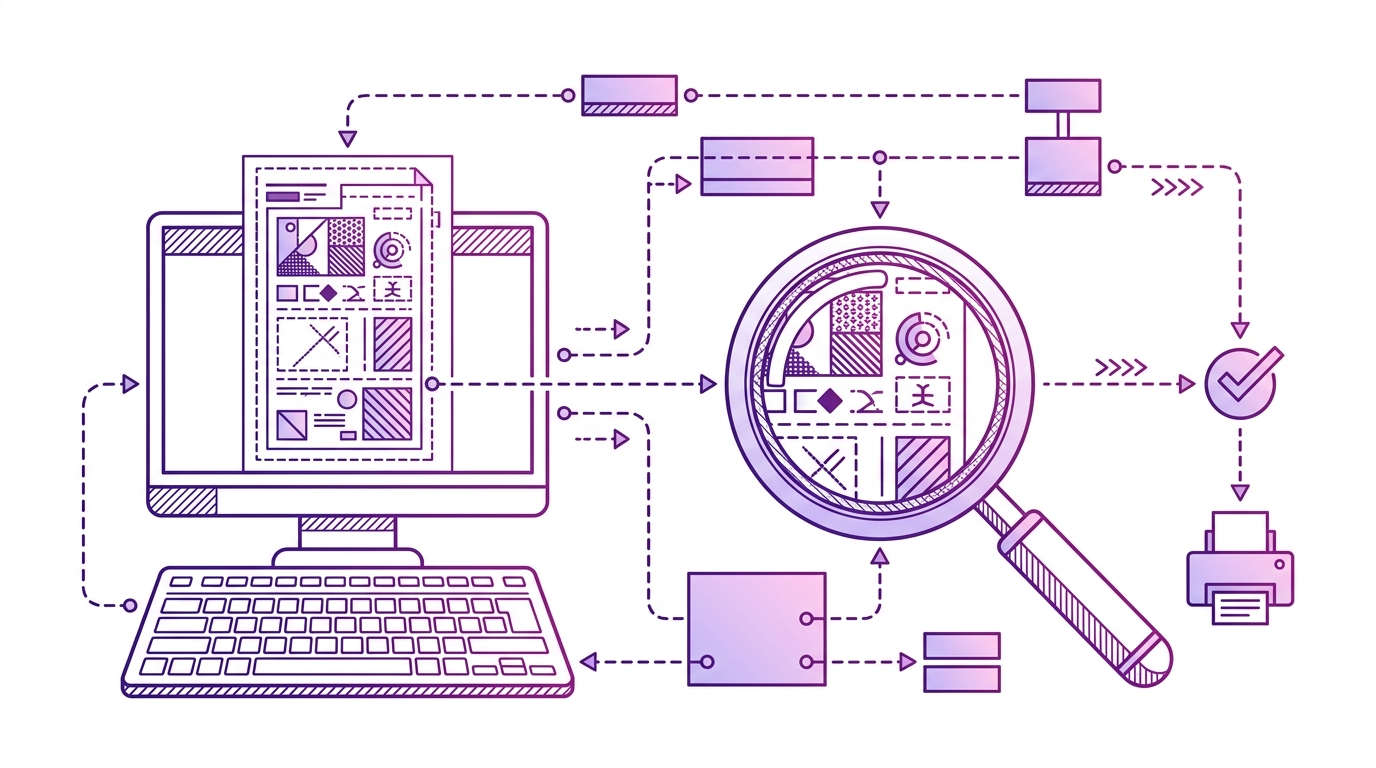
You don’t need a printer on your desk to find out whether a label layout works. In most cases, you need a reliable digital proof: a PDF or PNG that shows the same layout, barcode, and data mapping you would send to a physical print job. RSJ LPSNG – Next Generation Label Printing System is built around this idea. Its rendering engine can produce PDF and PNG label proofs directly, so you can verify output before committing to paper, thermal stock, or shelf-edge hardware.
This article explains why digital verification matters, what a useful proof looks like, and how to generate and inspect one using LPSNG’s managed workflow.
Why Digital Label Verification Matters
Physical test prints are slow. Every time you tweak a layout, change a data field, or switch a barcode symbology, you wait for a printer, consume media, and then squint at a tiny label. If the label is wrong, you repeat the cycle.
A digital proof removes most of that friction. You can check:
- Layout errors – misaligned text, clipped images, overlapping fields
- Barcode issues – wrong symbology, poor quiet zones, data that doesn’t match the label
- Data mismatches – variable data that renders in the wrong position or with the wrong formatting
- Dimensional problems – a label that is too large, too small, or incorrectly oriented
For development teams, this also fits naturally into automated testing. Instead of relying on a human to print and inspect labels, you can generate a PDF or PNG in a pipeline and compare it against expected output. If you are planning to automate label creation end to end, see Automate Barcode Label Printing with LPSNG API for the API-focused view.
What a Digital Label Proof Looks Like
A high-fidelity digital proof is not just a rough preview. It should show:
- The exact fonts and text placement that will appear on the label
- The correct barcode symbology and encoding
- The final label dimensions and resolution
- The same data mapping used in production
LPSNG’s rendering engine generates PDF and PNG files that are designed to match the final print output. These files are far more useful than a browser screenshot or a zoomed-in view of the label studio. A screenshot can hide resolution problems, font substitution, or barcode scaling issues. A rendered proof exposes them.
Another advantage: digital proofs are portable. You can share them with a customer for approval, archive them as part of a quality record, or compare two versions side by side to see exactly what changed between label revisions.
Step-by-Step: Generating a Digital Proof with LPSNG
The Next Generation Label Printing System gives you three practical ways to produce a digital proof without touching a physical printer.
1. Render from the label studio
Use the LPSNG web interface to open the label studio, create or load a layout, and render the label as a PDF or PNG. This is the fastest way to verify a single label or a small set of changes interactively.
After rendering, open the file in a PDF viewer or image editor. Check the label dimensions, field positions, and barcode area carefully.
2. Use the Web Service API
For automated verification, submit a print job through the LPSNG Web Service API and set the output format to PDF or PNG. The API returns a digital file instead of sending the job to a physical printer.
This is the same interface you would use for production label generation, so the proof you test is the same rendering path used for real output. The OAuth2 authentication model and job submission workflow are documented in the LPSNG Webservice Interface.
A conceptual API flow looks like this:
# Conceptual example: request a digital proof through the LPSNG Web Service API.
# The exact endpoint, OAuth2 flow, and payload schema are documented in the
# LPSNG Webservice Interface.
response = lpsng_api.submit_job(
    label_layout="shipping_label",
    data=order_data,
    output_format="pdf",
)

with open("proof.pdf", "wb") as f:
    f.write(response.content)
The key point is the output format. When you request PDF or PNG, no physical printer is involved. The resulting file is ready for inspection.
3. Use the LPSNG Player for batch rendering
The LPSNG Player is a standalone command-line print engine. It takes a package and data as input and can output PDF, PNG, JSON, print jobs, or ESL data. This is useful when you need to render many proofs in a batch, for example during regression testing of label layouts.
The exact command syntax is described in the LPSNG Player documentation. In practice, you can wrap the Player in a script that renders a label package with representative data into a numbered PDF or PNG series, then run automated checks against those files.
Interpreting Results and Handling Edge Cases
Once you have a digital proof, don’t just glance at it. Check the following:
- Barcode readability – scan the on-screen barcode with a barcode scanner app or software. If it doesn’t scan reliably on screen, it may need a larger quiet zone or a different symbology.
- Text truncation – especially with variable data such as long product names or addresses. Test with the longest realistic value.
- Image resolution – verify that embedded graphics look sharp at the intended print size.
- Label dimensions – confirm the proof’s pixel or PDF dimensions match your label size.
Common edge cases include variable data length, special characters such as umlauts or symbols, and the many 1D and 2D barcode formats supported by LPSNG. If a proof doesn’t render a particular barcode correctly, check the Barcode Formats documentation to confirm the expected encoding and field requirements.
Iteration is easy. Adjust the label design in the label studio, re-render the proof, and re-check. Repeat until the proof meets the requirement. Digital proofs are also useful for compliance reviews or customer sign-off before a large production run, because the reviewer sees the same high-fidelity rendering that will be printed.
Integrating Digital Proofs into Your Development Workflow
If you already build, test, and deploy software with CI/CD, you can apply the same pattern to label output.
For example, a CI pipeline can:
- Check out the label package and test data
- Call LPSNG or the LPSNG Player to render a PDF/PNG proof
- Run a verification script that checks dimensions, file size, or barcode readability
- Fail the build if the proof does not match expectations
A minimal verification step might look like this:
# Render the proof using your LPSNG Player wrapper or Web Service API call
./scripts/render_label_proof.sh

# Inspect the generated file
file proof.png

# Run a simple dimension check
python3 verify_proof.py proof.png
And a basic Python check for label dimensions:
from PIL import Image
import sys

def check_proof(path, expected_width=1200, expected_height=1800):
    with Image.open(path) as img:
        width, height = img.size
        print(f"Proof size: {width}x{height} px")
        assert abs(width - expected_width) < 10, "Unexpected label width"
        assert abs(height - expected_height) < 10, "Unexpected label height"
        print("Dimension check passed")

if __name__ == "__main__":
    check_proof(sys.argv[1])
Adjust the expected dimensions to match your label format and DPI target.
For non-developers, the LPSNG Google Sheets Add-on provides a simpler route: generate label proofs directly from spreadsheet data without writing code. That workflow is covered in How to Print Labels from Google Sheets with LPSNG.
The result is a faster development cycle and far less wasted label stock, because only labels that pass digital verification are ever sent to a physical printer.
FAQ
Q: Can I test label printing without any printer at all?
A: Yes. RSJ LPSNG allows you to render labels as PDF or PNG files, which serve as digital proofs. You can inspect these files on screen, share them, or even scan barcodes from the screen using a barcode scanner app.
Q: How accurate are digital label proofs compared to physical prints?
A: LPSNG’s rendering engine is designed to produce output that closely matches the final print. However, factors like printer calibration, media type, and DPI settings can cause minor variations. For critical applications, it’s recommended to do a final physical test print.
Q: Does the LPSNG Web Service API support generating PDF/PNG without printing?
A: Yes. The Web Service API allows you to submit print jobs with the output format set to PDF or PNG. This returns a digital file instead of sending the job to a physical printer, making it ideal for automated testing and verification.
Q: Which LPSNG editions include the ability to render labels to PDF/PNG?
A: All editions of LPSNG, including the cloud solution and embedded edition, support rendering to PDF/PNG as part of their core functionality. Refer to the product documentation for specific details on each edition.
Conclusion
Testing label printing without a physical printer is not a compromise — it’s often the fastest way to catch layout, barcode, and data problems before they become physical waste. The Next Generation Label Printing System gives you a managed path from label design to PDF/PNG proof, with the Web Service API and LPSNG Player providing automation options for development teams.
Start by rendering one label as a PDF or PNG, inspect it carefully, and only send it to a printer when the proof looks right. That single habit can save hours of rework and a lot of label media.
Related posts
- Label Printing Solutions for Warehouse Management Systems
- Zebra Printer Alternatives: Why LPSNG Might Be Your Choice
- Automate Barcode Label Printing with LPSNG API