
How to Create QR Code Labels in Bulk Efficiently
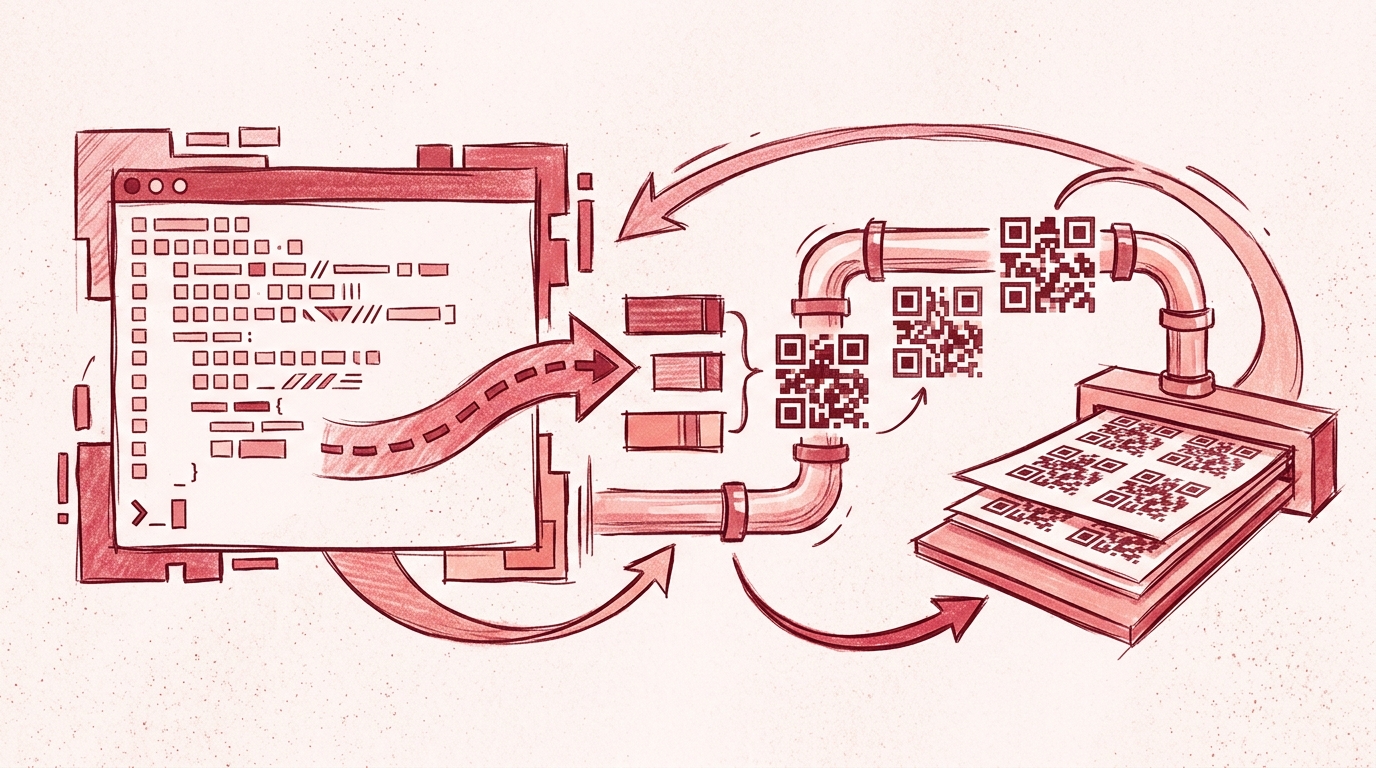
Creating one QR code label is easy. Creating hundreds of them—each with a unique URL, serial number, or inventory identifier—is where manual label design falls apart. In this article, you’ll build a repeatable workflow with Next Generation Label Printing System (LPSNG): design a label template once, connect a data source, and generate hundreds of QR code labels in a single batch as PDF, PNG, or direct print.
This guide focuses on the managed LPSNG workflow using the label studio. If you were to hand-code a barcode library, render PDFs, and manage print jobs yourself, you’d spend days reinventing what LPSNG already provides. Here, no custom label-generation scripts are required.
Prerequisites
Before you start, gather the following:
- An LPSNG account — either the cloud edition or an embedded edition with access to the label studio.
- A data source with QR payloads — a CSV file, Excel workbook, or Google Sheet containing the unique data that each QR code should encode.
- A basic label design idea — dimensions, orientation, and which static elements (logo, title, border) you want. If you’re still comparing design approaches, see Barcode Label Software vs Online Label Maker: Which Is Right for You?.
- A print or export destination — a label printer, a PDF/PNG file target, or a direct print queue.
Step-by-Step: Creating Bulk QR Code Labels with LPSNG
These steps use LPSNG’s visual label designer and data import features. You won’t write code to generate the labels.
1. Create a new label layout
Open LPSNG’s label studio and create a new layout. Set the label dimensions and orientation to match your physical label stock or export requirements.
For example, if you’re printing 50 mm × 30 mm inventory labels, configure the layout with those exact dimensions. Getting this right before adding fields prevents resizing headaches later.
2. Add a QR code field to the layout
Add a QR code element to the canvas. In the field properties, configure the QR code to use a variable data source rather than a static value.
LPSNG supports 2D barcode formats, including QR code. The field will read its value from the data column you map in the next step.
3. Import your data file and map the QR payload column
Import your CSV, Excel, or Google Sheets file into LPSNG. Map the column that contains the QR code payloads to the QR code field.
A clean CSV file might look like this:
item_id,product_name,qr_payload
10001,Temperature Sensor X,https://inventory.example.com/item/10001
10002,Temperature Sensor Y,https://inventory.example.com/item/10002
10003,Humidity Sensor A,https://inventory.example.com/item/10003
In this example, map the qr_payload column to the QR code field. Each row then becomes one label with a unique QR code.
4. Add other variable and static elements
This step is optional but useful for professional-looking labels.
Add variable text such as item_id or product_name from the same data source. Then add static elements like your company logo, a border, or handling instructions. Keep static elements away from the QR code’s quiet zone.
If you already use spreadsheets for labeling, the Google Sheets add-on is covered in How to Create Barcode Labels in Google Sheets with LPSNG.
5. Preview with sample data
Use the preview function to render the label with sample rows from your data source. Check that:
- The QR code changes when you switch between sample records.
- The encoded payload matches the value in the mapped column.
- Nothing overlaps the QR code or exceeds the label boundary.
This is the moment to catch mapping errors before generating hundreds of labels.
6. Generate the full batch
Use the bulk print or export feature to produce labels for all records in your data file.
Choose your output:
- PDF for later printing or archival.
- PNG for individual label images or digital use.
- Direct print to send the batch straight to a label printer.
LPSNG handles the rendering and job queue, so the same template stays consistent across the entire batch.
7. Review the generated labels and re-run if needed
Open or print a few labels from the batch. If the QR payload, text placement, or layout is wrong, adjust the data mapping or template in LPSNG and generate the batch again.
Because the workflow is template-driven, a fix applies to every label in the next run—you don’t edit labels one by one.
Verification: Ensuring Your QR Codes Work
After generating a batch, verify the output before printing hundreds of physical labels.
- Scan a sample. Use a smartphone camera or a dedicated barcode scanner to read several QR codes from the batch. Confirm each one encodes the correct value from your data source.
- Check contrast and size. QR codes must be dark modules on a light background. If you changed colors, verify that the scanner still reads the code.
- Confirm record mapping. Compare a generated label against the source row. The QR payload, item ID, and text fields should all match.
- Print a test page. If you’re using direct print, print one sheet first and scan the printed QR codes. Physical printer settings can affect scannability even when the on-screen preview looks correct.
For a deeper pre-print checklist, see How to Verify Barcode Label Accuracy Before Printing.
Troubleshooting Common Issues
QR code doesn’t scan
Most scanning failures come from physical rendering rather than the encoded data. Ensure there is a sufficient quiet zone around the QR code, the code is large enough for the scanner, and the contrast is high. LPSNG’s QR generator follows barcode standards, but low print resolution, glossy label stock, or insufficient ink can still degrade scannability.
Data mapping errors
If labels show the wrong payload or shifted values, check the source file. Common causes are missing column headers, extra delimiters, or inconsistent data types. Make sure the column you mapped to the QR field contains only the data that should be encoded.
A comma inside a field can also break CSV mapping. Use proper quoting:
item_id,product_name,qr_payload
10001,"Sensor, Blue",https://inventory.example.com/item/10001
Label layout issues
If the QR code is cut off, overlapping text, or misplaced, re-check the label dimensions and element positions. The label studio should match your physical label stock exactly.
Performance with large datasets
LPSNG handles bulk generation efficiently, but extremely large or scheduled batches may benefit from automation. LPSNG offers a web service API for submitting print jobs programmatically and a standalone command-line print engine called LPSNG Player that takes a package and data file and outputs PDF, PNG, JSON, print, or ESL.
FAQ
Can I create QR code labels in bulk without programming?
Yes. LPSNG provides a visual label designer and data import features that allow you to create hundreds of QR code labels from a spreadsheet or CSV file without writing any code.
What data sources does LPSNG support for bulk QR code generation?
LPSNG supports importing data from Excel files, Google Sheets, and CSV files. You can map a column containing QR code payloads to a QR code field in your label design.
Can I automate the bulk label generation process?
Yes. LPSNG offers a web service API and a standalone command-line player, LPSNG Player, that can be integrated into automated workflows for generating labels in bulk.
Does LPSNG support dynamic QR codes, such as URLs with query parameters?
Yes. You can include dynamic data in your QR codes by mapping fields from your data source. For example, you can generate QR codes that encode URLs with unique identifiers for each label.
Conclusion
The managed LPSNG workflow removes the repetitive work from bulk QR code label creation. Design once in the label studio, import a CSV or spreadsheet, map the QR payload column, and generate hundreds of labels in minutes. There’s no need to script a barcode generator, handle PDF rendering manually, or edit labels one at a time.
Next Generation Label Printing System is the practical solution for inventory, asset tracking, fulfillment, and product labeling at scale. Try the cloud edition or the embedded edition to build your first bulk QR batch.
For more advanced automation, check the web service API and LPSNG Player documentation. If you prefer spreadsheet-driven labeling, the Google Sheets add-on is a natural next step.
Related posts
- Label Printing for Small Business Owners: A Complete Guide
- Barcode Label Software vs Online Label Maker: Which Is Right for You?
- How to Verify Barcode Label Accuracy Before Printing
- How to Create Barcode Labels in Google Sheets with LPSNG
- How to Automate Label Printing from Excel Data with LPSNG